Lata Pictures
Help Center
Find an answer or talk to our support team.
No matching answers. Try another search or contact support.
VIP membership
What can I watch with a weekly or longer pass?
A weekly or longer VIP pass unlocks every locked episode of every available series, with unlimited viewing while your pass is active. A single-series purchase unlocks every episode of the series you bought.
Does VIP renew automatically?
On a PayPal checkout that offers it, use the No / Auto-renew control on the weekly or monthly plan before paying. Leave it on No for a one-time purchase. Single-series and 180-day purchases do not auto-renew. The checkout shows the price and billing interval before you confirm.
How do I stop VIP renewal?
Open My account and select Cancel subscription when an active PayPal subscription is shown. Confirm the cancellation and check that auto-renewal is off. You may also manage the subscription in PayPal. Signing out does not cancel it. Contact support if the account controls do not match your PayPal subscription.
What happens after I cancel or my VIP expires?
Canceling renewal keeps VIP access through the already-paid period. When that period ends, VIP-only episodes require an active membership or a separate purchase of that series. Eligible series purchases remain linked to your account independently of VIP.
Series purchases
Does buying a series create a subscription?
A single-series purchase is a one-time payment that unlocks every episode of the series you bought. It does not renew automatically. Standard purchases have no scheduled expiry while the title remains available. Introductory offers may provide only 3 days. Check your receipt for the access period. Refunded or reversed purchases no longer grant access.
Where are the series I bought before becoming VIP?
Open My account and look for Your purchased series. Your eligible purchases are listed even while VIP is active and remain separate from your membership. Make sure you sign in with the same account used for the purchase.
Why is a purchased series missing from my account?
Check that you are using the same sign-in account, then reload the page. Only completed, eligible purchases of available titles appear. If your payment completed but the series is missing, create a ticket with the series name, payment date and transaction ID so we can check it.
Payments & billing
What payment alternatives can I use?
Choose a pass on /subscription, then select “Debit or Credit Card” on the PayPal checkout to pay without a PayPal login, when offered. PayPal controls availability and verification. Illustrated steps: /help/payment-methods
Choose your pass
Open /subscription, choose the pass you want, review the amount and auto-renew setting, then continue to the secure PayPal checkout.
Choose Debit or Credit Card
On our PayPal checkout, use the black “Debit or Credit Card” button. Do not choose “Pay with PayPal” if you do not want to sign in to a PayPal account.
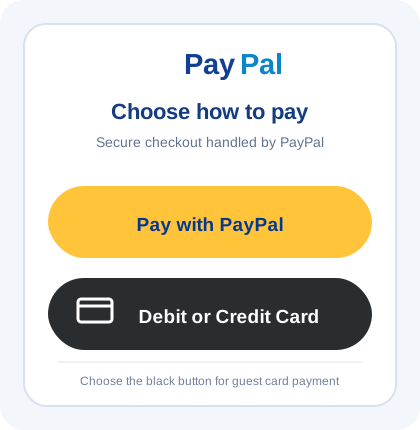
Choose the black Debit or Credit Card button for guest payment. Complete the guest card form
Enter the card and billing details directly in PayPal’s secure form. Use the billing country and postal code registered with your card. Lata Pictures does not receive or store the card number.
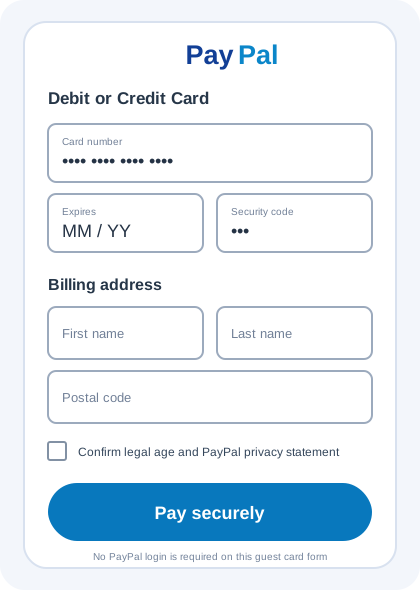
The guest card form is hosted by PayPal and does not require a PayPal login. Return after payment
After PayPal confirms the payment, wait for the website to return automatically. Do not close the page or pay again while confirmation is in progress.
Checkout asks for my SSN or ID. How else can I pay?
Do not send identity or card details in chat. Choose a pass on /subscription, then select “Debit or Credit Card” on the PayPal checkout to pay without a PayPal login, when offered. PayPal controls availability and verification. Illustrated steps: /help/payment-methods
Choose your pass
Open /subscription, choose the pass you want, review the amount and auto-renew setting, then continue to the secure PayPal checkout.
Choose Debit or Credit Card
On our PayPal checkout, use the black “Debit or Credit Card” button. Do not choose “Pay with PayPal” if you do not want to sign in to a PayPal account.
Choose the black Debit or Credit Card button for guest payment. Complete the guest card form
Enter the card and billing details directly in PayPal’s secure form. Use the billing country and postal code registered with your card. Lata Pictures does not receive or store the card number.
The guest card form is hosted by PayPal and does not require a PayPal login. Return after payment
After PayPal confirms the payment, wait for the website to return automatically. Do not close the page or pay again while confirmation is in progress.
I paid, but access is still locked. What should I do?
Return to the website, reload the page and confirm you are signed in with the same account used for purchase. Check the payment provider receipt or transaction status. A bank charge alone may still be pending. Do not pay again while the first payment is being checked. Reply with the payment reference, date, provider and pass/series so we can investigate. Never send full card details, SSNs or verification codes.
I see more than one charge. Can you check it?
Create a billing ticket with the dates and transaction IDs for the charges. Explain whether you bought a series or a VIP plan. We will review the records to distinguish renewals, separate purchases and possible duplicate payments. Do not send full card details.
How do I request a refund review?
Choose Payments & billing when creating a ticket. Include your transaction ID, charge date and reason. Requests are reviewed under the current Terms, including applicable mandatory consumer rights; submitting a ticket does not automatically approve a refund. Approved refunds return through the original payment method.
Video playback
What can I try when a video will not play?
Reload the page, check your connection, and try another browser. If you opened the site inside another app, try your usual browser. Confirm that your account has access to the episode. If it still fails, send the series name, episode, device, browser and any error message in a playback ticket.
What can I do about buffering or slow loading?
Try a different network and pause other large downloads. Close and reopen the video page. If the problem continues, tell support which series and episode are affected, when it happened, and your device and browser. A screenshot of the error can help.
How do I report a missing or incorrect episode?
Open a playback ticket and include the series name and episode number or page link. Describe what you expected and what appeared. Support can investigate availability or content errors; there is no guaranteed release date unless one is announced on the site.
Account & sign-in
I cannot sign in. How can I get help?
Try signing in again with the same account you previously used. If sign-in fails inside another app, open the website in your usual browser. If you still cannot access your account, use the website’s Contact page. Never share your password or a verification code.
Can I access a purchase from a different account?
Purchases and VIP access are linked to the account used at checkout. Sign in with that same account. If you believe you paid using the wrong account, contact support with the payment reference for review. Do not make another purchase just to troubleshoot.
How do I ask about my data or account deletion?
You may request account deletion even without a membership. Accounts that have never successfully paid are eligible after ownership verification and your explicit confirmation; support must check the full payment history first. A deletion request does not cancel an existing subscription, and we will not claim your account has been deleted until it is completed.
Who can send a ticket, and where will I see the reply?
Any signed-in account can send a ticket; VIP is not required. Open My Tickets to read replies and send follow-up messages. Open means the request is awaiting attention, In progress means it is being handled, and Resolved means it has been marked complete. Reply to a resolved ticket if you still need help.
Contact Support
Cannot sign in? Email [email protected] for account help. You can browse all help articles without signing in.
Email support
Email us at the address below. Open Gmail, use your email app, or copy the address into your preferred email service.